
Know when to leave for the next job
See You Soon reads today's jobs from the calendar on your iPhone and shows the next one with a leave time and a countdown. The leave time is the job's start, less the travel time from Apple Maps, less your buffer, which is 10 minutes until you change it. It needs an address the map can place, a route, and somewhere to start from.
How it works
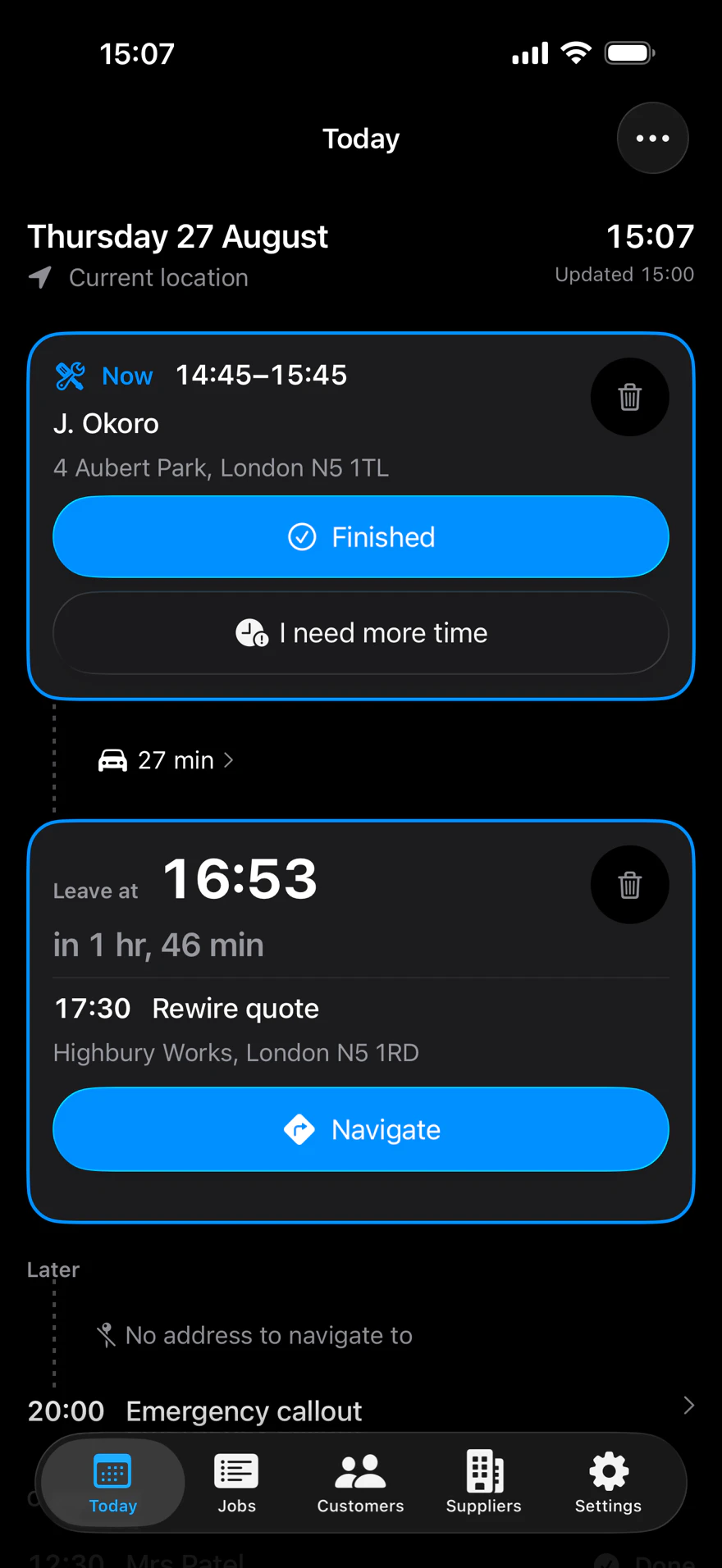
It reads the diary you already keep. Today shows the day's timed events from the calendars you choose. The job in hand is pinned at the top with a "Now" badge. The next job is the largest card. The rest sit under "Later" and "Completed".
It works out each journey. The first journey starts from where the phone is, when location is allowed and known. Otherwise it starts from the starting point in Settings. Each later journey starts from the previous job's address.
It puts one leave time on the screen. The next job shows "Leave at", the time, and a countdown such as "in 46 min". Within 100 metres of the job's address, the card says "You're here".
It keeps the plan up to date while the app is open. It plans again when you open it, on a timer, and when the calendar or a setting changes. Pull down on Today to plan again yourself.
The facts
| Leave time | The job's start, less travel time, less your buffer |
|---|---|
| Buffer | 10 minutes to start with. 0 to 60, in steps of 5 |
| Travel modes | Driving, Walking, Public transport |
| Public transport with no time from Apple Maps | The driving time is used, and the app says so |
| "You're here" | Within 100 metres of the job's address |
| Plan rebuilt while the app is open | Every 5 minutes by default near a leave time. 1, 2, 5, 10, 15 or 30 minutes |
| Travel time flagged as old | After 15 minutes without a fresh answer |
| Badges | "Leave soon", "Leave now", "Running late", "Now", "Done", "No address", "No route" |
| "Coming up" | The next 14 days, one line a day, with the number of jobs and the biggest free gap |
What it needs
- Full calendar access. Without it there are no jobs to show.
- An address on the job that the map can place.
- A connection, for travel times from Apple Maps.
- Location allowed, or a starting point set in Settings, for the first job of the day.
- The app open, for the plan to stay up to date.
What it doesn't do
- It doesn't check in the background. The plan is made again only while the app is open, so open it each morning.
- All-day, cancelled and birthday events are not planned. Today says what it left out.
- Navigate opens Apple Maps only.
Questions
How is the leave time worked out?
It is the job's start, less the travel time from Apple Maps, less your buffer. The buffer is 10 minutes until you change it in Settings. A job needs an address the map can place, a route, and somewhere to start from. Without them the card shows "Starts at" and the start time.
Where does the first journey of the day start from?
From where your iPhone is, when location is allowed and its position is known. Otherwise from the starting point you set in Settings, usually home or the yard. You can also set a starting point for one day from the Today toolbar.
What if Apple Maps has no public transport time?
The app uses the driving time for that journey and says so on screen.
Does it keep checking traffic when the app is closed?
No. The plan is made again only while the app is open: when you open it, on a timer, and when the calendar or a setting changes. Alerts already scheduled still arrive, from the last plan made while the app was open.
What happens to a job with no address?
It keeps its place in the day and shows "Starts at" with the badge "No address". Tap "Add" to type the address, or "Here" to use where you are standing. Both write the address onto the calendar event.
Related pages
Alerts for each leave time are on Alerts. How the address is found is on Finding the address. When a job runs over, see Running late.
About See You Soon
See You Soon is a free iPhone app for tradespeople. It reads the calendar you already keep, works out when to leave for each job with travel times from Apple Maps, and writes the text to send when you are running late. You send it.